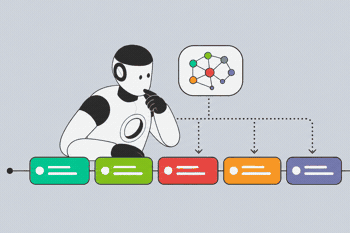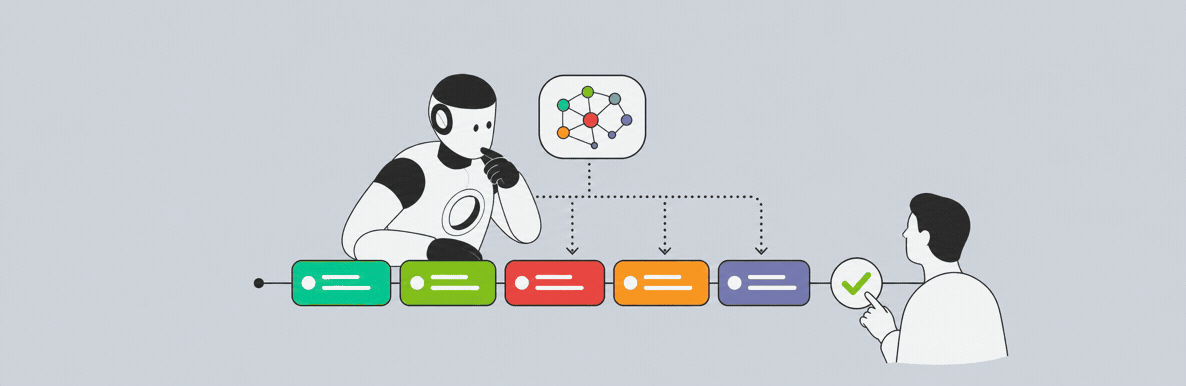
Connect an MCP capable AI assistant to ManicTime and it can turn your recorded activity into tags. You can then review the tags in ManicTime's tag view.
Before using these prompts, connect an MCP capable AI tool to ManicTime:
- If ManicTime runs only on your computer, follow the Desktop setup. The local MCP server works with clients such as Claude Desktop, Claude Code, Cursor, Codex, GitHub Copilot in VS Code and others.
- If your data is in ManicTime Cloud, follow the Cloud setup.
- Cost: MCP is included with a paid ManicTime license or trial, there is no separate MCP add-on. Your AI provider may require a paid plan.
- Privacy: ManicTime sends only the data you requested through MCP, but that data is processed by the AI provider you connect. It can include window titles, file paths, website domains, and tag names. Review your provider's data policy and avoid sending customer or ticket data unless your organization permits it.
Choose a prompt
The best prompt depends on how you work and what data is available. Choose the statement closest to your situation:
- I'm just starting with ManicTime
- I already have some tagging history
- I connected Jira or another project management tool to ManicTime
- My team uses a fixed set of tags
- I use separate virtual desktops for different clients or projects
- I use Git for my work
I'm just starting with ManicTime
With no tag history, AI has to invent a vocabulary. Left alone, it tends to produce labels such as "Work," "Browsing," and "Communication": technically correct, but rarely useful for an invoice or report.
Client and project names may already appear in folder paths, website domains, document titles, and meeting names. Ask the assistant to find that evidence before proposing a small tag structure:
Look at my ManicTime activity for yesterday. Read the whole day before proposing anything. Identify real client, project, and product names that recur across window titles, folders, and domains. Propose tags in the format "Project, Task" using those names, never generic tags such as "Work."

Use a name as the first tag level only when the evidence shows that it is a durable client, project, or product—for example, an established folder root, repository, domain, or existing tag. Generic descriptions such as "Redesign," "Research," "Meeting," or "Support" belong at the task level, not the project level. If you cannot identify the client or project confidently, leave the interval unmatched and ask me.

Read neighboring activity as work sessions, not application-by-application fragments. Group intervals when the titles and surrounding context show the same task, and fold brief work-related application switches into that session. Keep obvious personal detours separate.

For each interval, write a factual note first, then choose the tag that best matches it. Show start, end, duration, evidence, and high, medium, or low confidence; when uncertain, include up to two serious alternatives. Exclude Away and Locked periods and obvious personal activity. List anything unmatched. Do not save until I explicitly approve.
In ManicTime, a comma creates a hierarchy. "Northwind, Development" means Development work for the project (or client) Northwind, so Northwind's time rolls up together in reports.
Correct the vocabulary before saving. Those corrections become tag history the assistant can reuse on the next run.
I already have some tagging history
Once you have history, stop asking the assistant to invent and ask it to imitate.
Propose tags for yesterday. First examine how I tagged the previous two weeks: exact tag names, language, level of detail, and the activity associated with each tag. Reuse an existing tag wherever it fits. Propose a new tag only when nothing existing matches, and flag it clearly.

Read neighboring activity as work sessions, not application-by-application fragments. Group intervals when the titles and surrounding context show the same task, and fold brief work-related application switches into that session. Keep obvious personal detours separate.

Do not alter already tagged time. Propose intervals only for untagged active time and use FillBlanks if I later approve saving them. For each interval, write a factual note first, then choose the tag that best matches it. Show start, end, duration, and high, medium, or low confidence; when uncertain, include up to two serious existing-tag alternatives.
If the last day or two were tagged hastily, tell the assistant to ignore them when learning your style. This is especially valuable for billable work: manual tags anchor the vocabulary and the AI fills gaps without replacing reviewed entries.
I connected a project management tool to ManicTime (Jira, Asana, Azure DevOps...)
ManicTime's tag plugins can connect to Jira, Asana, Azure DevOps, Basecamp, and ConnectWise and sync your open issues into ManicTime as ready-made tags, usually prefixed with the plugin's starting tag: "Jira, Project, #ISSUE-KEY summary". The AI does not need its own connection to the ticket system: the issues are already in your tag list, and MCP can return them. Tagging becomes matching — issue keys and distinctive title words may appear in window titles and branch names.
Get my available tags from ManicTime, including tags from external sources. My Jira issues are the tags starting with "Jira", shaped "Jira, Project, #ISSUE-KEY summary". Propose tags for yesterday by matching work to those issue tags: look for the issue key or distinctive title words in window titles and branch names. Use each tag exactly as it appears in the list, never invent or reword an issue tag. If an interval matches no issue, leave it unmatched rather than forcing the nearest one.

Read neighboring activity as work sessions, not application-by-application fragments. Group intervals when the titles, issue evidence, and surrounding context show the same task, and fold brief work-related application switches into that session. Keep obvious personal detours separate.

For each interval, write a factual note first, then choose the issue tag that best matches it. Show the interval, duration, evidence, and high, medium, or low confidence; when uncertain, include up to two serious alternatives from the issue list. List unmatched and ambiguous time separately. Exclude Away and Locked periods and personal activity. Preserve existing tags with FillBlanks. Do not save until I explicitly approve.
"Use each tag exactly as it appears" keeps the result connected to the ticket system. The Jira plugin can also send tagged time back to Jira as worklogs, so time matched to an issue ends up logged on the ticket itself.
If your project management system has no ManicTime plugin but provides its own MCP server, connect both it and ManicTime to the same AI assistant. Ask the assistant to retrieve your assigned issues and match them against your ManicTime activity.
My team uses a fixed set of tags
Teams often use an admin-defined tag list so everyone's reports use the same vocabulary. ManicTime v2026.2+ can return the tags available to the current user, and ManicTime validates approved tags when saving.
Get my available tag list from ManicTime. Propose tags for yesterday using combinations from that list. You may append a more specific tag after an allowed combination — for example "Northwind, Development, code review" — except where the combination ends with ", ."; those are exact and nothing may be added. Never invent a new combination from scratch or rename an existing tag. If an interval fits nothing, leave it unmatched rather than forcing the nearest one.

Read neighboring activity as work sessions, not application-by-application fragments. Group intervals when the titles and surrounding context show the same task, and fold brief work-related application switches into that session. Keep obvious personal detours separate.

For each interval, write a factual note first, then choose the available tag that best matches it. Show the interval, duration, and high, medium, or low confidence; when uncertain, include up to two serious alternatives from the available list. List unmatched time separately. Exclude Away and Locked periods and personal activity. Preserve existing tags with FillBlanks. Do not save until I explicitly approve.
The allowed list constrains the vocabulary. An approved combination normally accepts more specific tags appended after it, so the AI can still record what was actually done — "Northwind, Development, code review" rolls up under "Northwind, Development" in reports. Combinations the admin closed with ", ." stay exact. Both rules are visible in the tag list itself, and ManicTime enforces them again when saving, so a hallucinated tag cannot slip into the team's reports.
I use separate virtual desktops for different clients or projects
ManicTime records explicitly named Windows virtual desktops with your activity. If your desktops are named after clients or projects, ask the AI to use the desktop name as project evidence.
Get my ManicTime activity for yesterday, including the virtualDesktop field. My desktops are named after clients and projects, so treat the desktop as the primary evidence for the project-level tag. Use window titles and domains for the task level, and to flag activity that clearly does not belong to the desktop's project — I sometimes forget to switch.

Read neighboring activity as work sessions, not application-by-application fragments. Group intervals when the desktop, titles, and surrounding context show the same task, and fold brief work-related application switches into that session. Keep obvious personal detours separate.

For each interval, write a factual note first, then choose the tag that best matches it. Show the interval, duration, and high, medium, or low confidence; when uncertain, include up to two serious existing-tag alternatives. List intervals where the desktop and the titles disagree separately. Exclude Away and Locked periods and personal activity. Preserve existing tags with FillBlanks. Do not save until I explicitly approve.
The desktop is deliberate, but not absolute — a quick email about another client happens on whatever desktop is open. That is why the prompt keeps titles as a cross-check and asks for desktop/title disagreements as a separate list; those are usually the intervals worth a second look.
I use Git for my work
For developers, the repository often identifies the project while the branch points toward the task. If your AI can also access GitHub Issues or Projects, it can fetch your open or assigned tasks and match issue numbers or distinctive title words to the branches ManicTime recorded. This lets it reconcile tasks, branches, and activity instead of treating the branch name as the final label.
Propose tags for my coding time yesterday using git repository and branch as evidence. If you can access my GitHub tasks, first get my open or assigned issues and tasks for the repositories seen yesterday. Match them to branches using issue numbers and distinctive title words. Treat the repository as the project and the matched GitHub task as the task. Never force a task match.

Read neighboring activity as work sessions, not application-by-application fragments. Fold short work-related browser lookups, terminal activity, and quick messages into the surrounding branch only when their timing and titles support that connection. Keep obvious personal detours separate.

Exclude Away and Locked periods and personal detours. For each interval, write a factual note first, then choose the tag that best matches it. Show the interval, duration, and high, medium, or low confidence; when uncertain, include up to two serious existing tag alternatives. List coding time with no git data separately. Preserve existing tags with FillBlanks. Do not save until I explicitly approve.
Git is strong evidence when present, but meetings, email, and planning usually have no branch. Use git for coding time and the other activity signals everywhere else.
Best practices for reliable AI tagging
These practices made the results better and easier to review in our tests:
Review before saving. Ask for a proposal containing the tag, start and end time, and duration. The assistant should list uncertain and unmatched time separately and wait for explicit approval before writing anything.
Write the note first. For each proposed interval, ask the AI to summarize the actual work in one or two factual sentences using window titles, sites, documents, and other visible evidence. Then choose the tag whose meaning best matches that note. ManicTime MCP can save the note together with the tag.
Show serious alternatives. When the choice is uncertain, ask for high, medium, or low confidence and up to two existing tags the AI seriously considered. Keep confidence and alternatives in the review draft; they help you decide, but they are not saved as part of the tag.
Preserve existing work. When filling gaps around manual tags, ask it to use ManicTime's FillBlanks mode. That prevents new intervals from overwriting or double-tagging time you already reviewed.
Tag work sessions, not applications. Work often moves between a browser, chat, terminal, editor, and meeting tool. Group neighboring activity when the titles and surrounding context show the same task and fold brief work-related switches into that session. Do not absorb obvious personal detours.
Leave away and personal time untagged. Tell it to exclude Away and Locked periods, along with obvious personal detours. A short browser lookup related to the surrounding task may belong to that task; a personal video does not.
Reuse exact names. If you tag in another language, for example in French, you can append "Use French and preserve the exact spelling of my existing tags." Avoid pairs of tags whose meanings substantially overlap, such as "Support" and "Customer feedback," unless the distinction is visible in the activity data.
Try it
Start with one day. Review the proposal, correct the vocabulary and intervals, then approve the save. The model itself does not learn permanently from that correction, but the corrected tags become history it can inspect and reuse tomorrow.
AI output can vary slightly between runs, so the same query may produce somewhat different results.
Once you find a combination of prompt and rules that works for you, save it as instructions in a ChatGPT or Claude Project, or turn it into a reusable skill. Keep it private if it contains client names or personal information.
If you find a prompt or workflow that works well for you, tell us about it—we'd love to hear what works and what's missing.