We've released ManicTime v2026.2 Beta for Cloud (ManicTime Server), Windows, Mac and Linux. This release focuses on broader MCP access, new integrations, better Linux compatibility and richer exports.
Highlights
MCP for on-premise ManicTime Server
The previous release brought MCP to ManicTime Cloud. In v2026.2 Beta, AI tools can also connect to an on-premise ManicTime Server, using the new ManicTime MCP Bridge.
Most AI tools cannot authenticate to an on-premise server on their own. The bridge closes that gap. It is a small command-line tool that runs on your own computer. Your AI tool starts it as a local MCP server, and the bridge then makes an authenticated connection to your server's /mcp endpoint:
- ManicTime Server → bridge: authenticated connection to the
/mcpendpoint - bridge → AI tool: local stdio (or local HTTP when a tool expects a server URL)
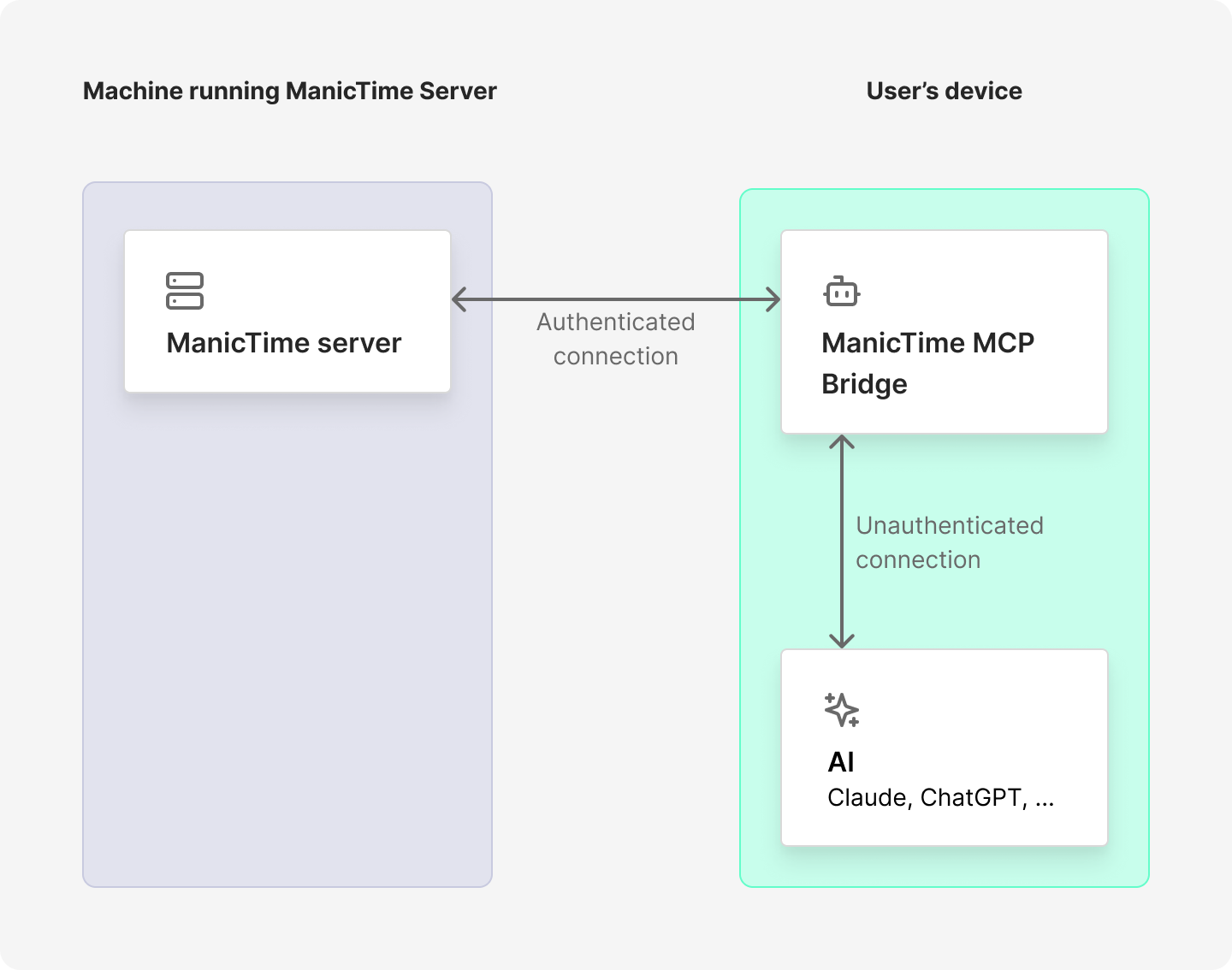
It supports both Windows authentication (the current Windows user, or a specified domain user) and ManicTime accounts, with ready-made setup snippets for Claude Code, Claude Desktop, OpenAI Codex, and GitHub Copilot in VS Code. Builds are available for Windows, Mac (arm64), and Linux (x64 and arm64).
For setup instructions and download links, see Connecting AI to ManicTime Server.
Extended MCP support
MCP support is now available on ManicTime Cloud and ManicTime Server with a larger set of tools. AI tools can query timelines, activity summaries, groups, tags, screenshots, users, teams, environments, current date/time, total duration, and auto-tag settings.
Previously, Cloud MCP was focused on querying your own data. In v2026.2 Beta, administrators and users with Content reader or Content writer permissions can also query data for other users or teams, depending on their permissions.
ManicTime Cloud can be connected directly from AI tools that support remote MCP servers with OAuth. For an on-premise ManicTime Server, use the new ManicTime MCP Bridge described above.
The practical difference is that AI tools can now work with ManicTime data much more like a reporting assistant. Here are examples of prompts that are now possible:
Add autotag rule to tag Project 1 whenever I visit acme.com.
Compare total tracked time for Alice and Bob this week.
What did Sara work on this morning? (if your role allows it)
Which Git branches did I spend time on today?
Find screenshots from my laptop between 10:00 and 11:00 yesterday.
Create tags for the support work I did this afternoon, but do not overwrite existing tags.
Export my auto-tag settings, or explain how ManicTime auto-tagging works.
Behind the scenes the AI can chain these steps: list the visible users or teams, pick the right one, fetch the relevant timelines, summarize the activity, and drill down into the raw activity rows or screenshots when the summary is not enough.
The same permission rules still apply. MCP only returns data the signed-in account is allowed to access. A regular user sees their own data. Server administrators and users with Content reader or Content writer permissions can query broader scopes, such as a team or all users.
For setup instructions, see Connecting AI to ManicTime Cloud and Connecting AI to ManicTime Server. For the full list of 19 tools, see Available AI (MCP) tools.
SingleCase integration
ManicTime Server now includes SingleCase integration. This is intended for law firms using SingleCase and supports two-way synchronization between ManicTime and SingleCase.
Download: ManicTime Server v2026.2 Beta
Selection modes when tagging on Server
When tagging time in the ManicTime Server web app (Personal → Tag time), you can now control how a selection treats already tagged time. The new Show only untagged time mode keeps just the untagged activity in the details list as you drag, so you can tag what is left without accidentally tagging the same time twice.
The desktop client has had these selection modes for a while; this brings the same option to ManicTime Server. See selecting time for tagging.
Download: ManicTime Server v2026.2 Beta
Export additional tracked data
Exports can now include additional tracked properties where available:
- Remote client address
- Virtual desktop
- Workplace
- Git repository
- Git branch
This applies to Windows exports and makes it easier to analyze data outside ManicTime without losing useful context.
Download: ManicTime for Windows v2026.2 Beta
GNOME 49 support on Linux
ManicTime Linux now supports GNOME 49. This keeps window and activity tracking working on newer GNOME-based distributions where older GNOME extension APIs changed.
Download: ManicTime for Linux v2026.2 Beta
Delete tracked locations and routes on mobile
On Android and iOS, you can now delete tracked locations and routes from location history. This makes it easier to remove location data you do not want to keep.
Download: ManicTime for Android Download: ManicTime for iOS
As always, this beta is a chance to test changes before the final release. If you run into issues or have feedback, please let us know.