Most time tracking tools still ship with a stopwatch. Press start, press stop, name the task. It is the oldest pattern in the category, and for a one-hour client call or a focused writing block, it works.
The trouble is that very little real work looks like that anymore. A normal day is a Slack thread, a half-finished document, three browser tabs, a quick fix, a meeting that overruns, and a question from a teammate that turns out to be twenty minutes of actual work. By the end of the week, the timer log shows four neat blocks. The day had forty.
That gap between what a stopwatch can capture and what actually happened is the reason automatic time tracking exists. Instead of asking you to classify work the moment it starts, an automatic time tracker records the activity itself — apps, websites, documents, active and away time — and lets you tag it afterwards, when you know what the time was actually for.
Stopwatch time tracking
The stopwatch model is the default in most time tracking apps. You decide what you are doing, you start the timer, you stop the timer when the work changes, and you label the entry. It is simple, predictable, and works as long as the day cooperates.
What a stopwatch timer actually asks of you
A timer-based tracker looks simple, but the work it pushes onto the user is anything but.
Every time a piece of work begins, you have to answer questions before you have any context:
- Which client is this?
- Is it billable?
- Is it project work or support?
- Is the current timer still right, or do I stop it?
- Did I already start a timer earlier?
- Is this even worth tracking?
A Slack message arrives, you open the client's account to check something, you skim a spreadsheet, you reply. Was that support? Account management? Consulting? Internal admin? With a stopwatch, you have to decide in the first ten seconds, while the actual work is still loading in your head.
That cost is the same for every transition. Managers switching between people, consultants switching between clients, developers switching between code, reviews, builds, and tickets — each switch creates a new tracker decision. Most workdays have twenty or more of those. Stopwatch reports look tidy because the user gave up on the small ones, not because the day was tidy.
There is a second cost, less obvious. Good work usually requires not thinking about the system you are using to record work. The minute the timer prompts you to step out of the document and classify what you are doing, you have been pulled out of the task. Done once, that is a small price. Done forty times, it becomes the most disruptive thing on your screen.
Where manual timers lose the small stuff
The first thing manual time tracking loses is small work. A five-minute email. A ten-minute review. A short follow-up after a meeting. A pricing question. A quick log check. None of these feel worth starting a timer for, so they get rounded off or skipped. Multiply that across a team and the missing time is significant — and it is exactly the kind of time that shows where projects actually go over budget.
The second thing it loses is context switching itself. A timer can only record what the user remembers to stop and start. Twenty real transitions in a day compress down to three or four labels, and the report ends up looking cleaner than the work was. For billing, that means undercharging. For management, it means projects look cheaper, support looks smaller, and the cost of interruption disappears from the data.
Stopwatch timers do not just undercount time. They undercount complexity.
The third thing — and the most consequential — is that stopwatch workflows quietly depend on memory. At the end of the day, or worse, the end of the week, the user looks at a half-finished log and reconstructs it from recollection: was that meeting 30 minutes or 45, did the Acme call come before or after lunch, what was I doing between 2:10 and 2:40. People are bad at this. Work memory compresses time, interruptions vanish, and switching costs are forgotten. Reminders, idle detection, and end-of-day review prompts all help, but none of them change the underlying issue: the tool only knows what the user remembered to tell it. Be more disciplined is not a product strategy.
Automatic time tracking
Automatic time tracking flips the order. Instead of classifying work before it happens, the tracker records what happened, and you decide what it meant afterwards. The user is no longer responsible for catching every transition in real time — they are responsible for reviewing a timeline that is already complete.
How automatic time tracking works
ManicTime, as one example, records:
- Which applications were active and for how long.
- Which websites were visited and how long was spent on each.
- Which documents were opened or edited.
- When the computer was active and when it was away.
- Optional screenshots, if you choose to enable them.
That gives you a timeline of the day. You then tag blocks of time as client work, internal work, billable, non-billable, support, research, admin, meetings, development — whatever categories your business uses. The work happens first. The classification happens once you have context.
This is what people mean by review and tag time tracking. It is not a timer with a fancier interface. It is a different order of operations.
See your real day. Download ManicTime free and compare the timeline with what you would have remembered.
Retroactive tagging is more realistic, not lazier
Tagging work after it happens sometimes feels less rigorous than pressing start at the perfect moment. It is actually closer to how people understand their own work.
You often only know what a block of time was once it is over. A quick investigation turns out to be a client bug. A casual call turns out to be a sales opportunity. A document review turns into legal work. A meeting that looked internal turns into billable project planning. With automatic time tracking, you are not forced to guess in the first ten seconds. You can look back at the evidence — which apps were open, which sites were visited, which documents were touched, what happened before and after — and assign the tag with full context.
That makes the tag more accurate, and it removes the constant in-the-moment classification tax that stopwatch users pay.
AutoTags can do the boring part for you
Manual review does not mean classifying every minute by hand for the rest of your career.
Once your patterns are clear, AutoTags take over the recurring work. A client's Jira host tags time to that client. A folder path identifies a project. A document title matches a case, matter, or customer. A set of apps marks internal admin or development work.
What to look for in automatic time tracking software
If you are evaluating tools, the features below are the ones that actually separate review-and-tag automatic time tracking from a stopwatch with extra menus.
| Feature | Why it matters |
|---|---|
| Automatic app, website, and document tracking | Captures the work even when no one starts a timer. |
| Active and away time | Separates computer work from breaks and idle periods. |
| Retroactive tagging | Lets people classify work after they understand it. |
| AutoTags | Handles recurring patterns without daily manual cleanup. |
| Timesheets and reports | Turns raw activity into billable and management data. |
The goal is not to collect more data for its own sake. The goal is to stop guessing.
Same hour, two timesheets
Take a single fragmented hour and look at how each approach handles it.
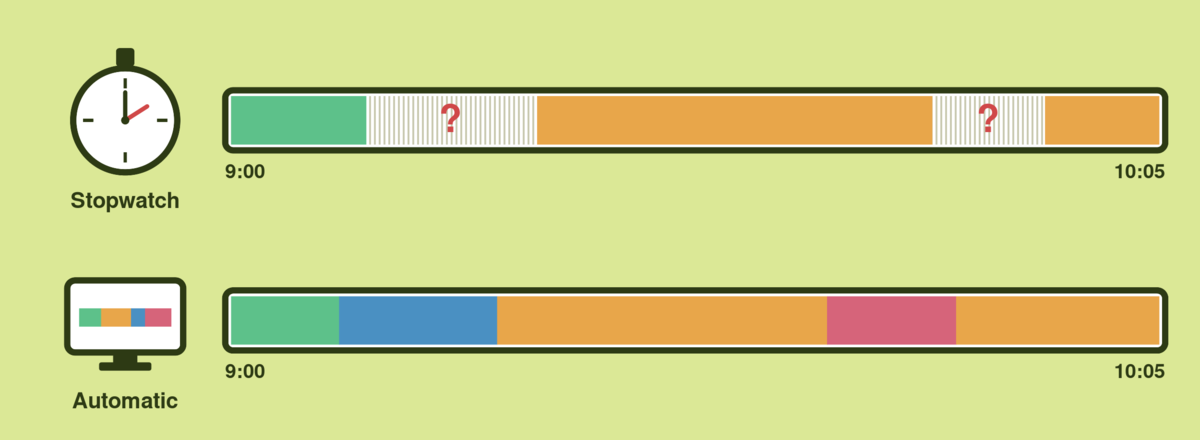
| What actually happened | Stopwatch reconstruction | Automatic time tracker + tags |
|---|---|---|
| 9:00 — open laptop, scan email | "Email, ~10 min" | 9:00–9:08 Email |
| 9:08 — Slack from Client A about a bug | (forgotten — too small) | 9:08–9:19 Client A, Support |
| 9:19 — open dev environment, reproduce bug | "Acme work, ~30 min" | 9:19–9:42 Client A, Development |
| 9:42 — call from teammate, design question | "Meeting, ~15 min" | 9:42–9:51 Internal, Design review |
| 9:51 — back to bug, write fix | (lumped into "Acme work") | 9:51–10:05 Client A, Development |
The stopwatch user ends up with three rounded entries and one missing one. The automatic tracker ends up with five accurate entries, tied to specific tools, with the small Slack work captured. Same hour. Very different invoice.
Round numbers, real hours
Looking at that automatic timeline, you might worry the entries are too precise. 9:08–9:19 and 9:42–9:51 are not how invoices usually look. Most professional services bill in 15-minute increments, some in 30, some in full hours.
That is not a problem. Minute-level accuracy underneath does not force you to invoice in minutes. ManicTime lets you round timesheet totals at the period level — each tag's total for a day, week, or month is rounded to the nearest 15 minutes, 30 minutes, or hour, in whichever direction your billing policy requires.
The result is the best of both worlds. The invoice shows clean, round numbers your clients expect. The underlying timeline is the real record — minute-accurate, tied to the apps, websites, and documents that actually produced the work. If a client ever asks "what is this 4.5-hour entry?", you have the evidence to back it up.
Stopwatch totals look round by accident — the user remembered three big blocks instead of twenty small ones. Automatic time tracking totals look round on purpose: rounding happens after the data is captured, not instead of capturing it.
A few minutes a day
A common worry about review-and-tag automatic time tracking is that classifying a whole day by hand sounds slower than just starting and stopping a timer.
In practice, a couple of minutes a day is usually enough to be fully accurate.
Two things keep it fast. The evidence is already there — you can see which app, website, or document was active for each block, so the tag decision is almost immediate. And AutoTags handle the rest, tagging recurring work automatically: a client's Jira host, a project folder, a billing-related app set. You only review the new or unusual blocks.
Stopwatch users pay their time tracking cost twenty times a day, in micro-interruptions. Automatic time tracking users pay it once, in a short end-of-day review.
The takeaway
Stopwatch time tracking asks people to know too much, too early, and punishes them with bad data when the day changes shape. Real work is fragmented, interrupted, and often only makes sense in hindsight.
Automatic time tracking records first and asks questions later. You get the timeline, then you decide what the time meant. AutoTags handle the repeat patterns. Stopwatch timers are still fine for clean, one-thing-at-a-time work — but if your current timesheets are mostly memory with a stopwatch attached, it is worth trying the other model.
Try ManicTime free for a week and compare the recorded timeline with what you would have remembered. Most people are surprised by the gap.