A couple of times a year we suddenly get a wave of support messages that all sound similar:
Chrome updated and website tracking stopped working.
or:
Firefox/Edge/Vivaldi was tracking URLs yesterday, but today ManicTime only shows the browser name.
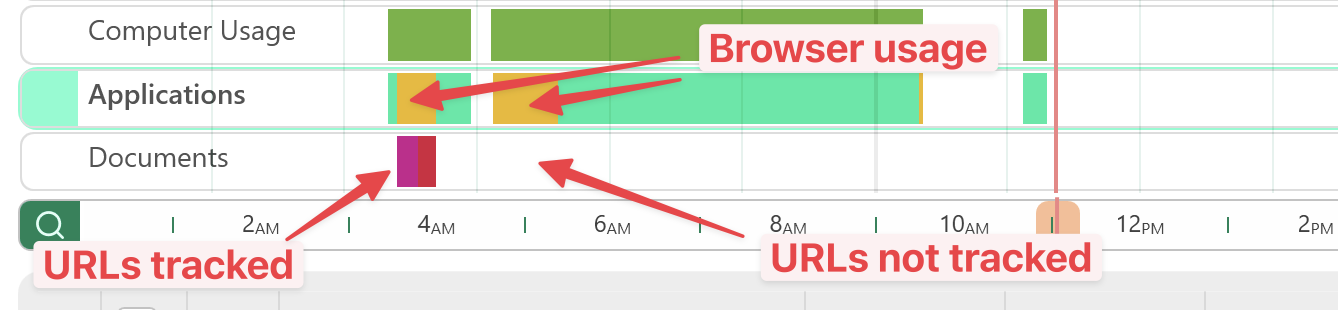
When this happens, ManicTime is usually still tracking the browser on the Applications timeline. You can see that you used Chrome, Edge, Firefox, Brave, or another browser. What disappears is the more useful detail: the actual website URL on the Documents timeline.
This article explains why that happens and what to do when it does.
How browser tracking works in ManicTime and why it breaks
ManicTime tracks browser activity on two timelines: Applications and Documents.
The Applications timeline always works and sees the browser as an application. If Chrome is active for 20 minutes, the Applications timeline will show Chrome for 20 minutes. This part is stable because it works like tracking any other running application.
The data on the Documents timeline depends on the application. For each application that shows data on the Documents timeline, a plugin is written to extract additional data. For browsers, this plugin gets the URL from the browser. The URL is then stored in the database and shown on the Documents timeline, below the browser usage on the Applications timeline.
ManicTime ships with these built-in browser plugins.
This is convenient because it works without installing anything extra in the browser. But it also depends on how the browser exposes its current tab, window title, automation interface, or internal structure.
Browsers change often. When a browser vendor releases a new version, it can change something that ManicTime's built-in plugin depends on. The browser itself still works. ManicTime still tracks the browser application. But the URL extraction can break.
That URL extraction is the part people usually mean when they say "website tracking stopped working."
That is why this problem often appears suddenly:
- A browser updates automatically.
- ManicTime keeps running normally.
- Application tracking still works.
- The Documents timeline stops receiving website URLs.
First fix: update ManicTime
If website URLs disappeared after a browser update, update ManicTime.
For popular browsers we usually fix these breakages quickly, often within a week after the browser update reaches users. Updating ManicTime is therefore the first thing to try.
In ManicTime, click the version number in the bottom-right corner and install the latest version. You can also download the newest installer from the ManicTime website.
After updating:
- Restart ManicTime.
- Visit a few websites.
- Switch between tabs.
- Check the Documents timeline.
If the built-in browser plugin was fixed in a newer ManicTime release, website tracking should start working again.
The better fix: install the browser extension
There is a more reliable option: install the ManicTime browser extension.
The browser extension runs inside the browser itself. Instead of ManicTime trying to extract the current URL from outside the browser, the extension reads the active tab from inside the browser and sends the URL to the locally installed ManicTime client.
When the browser extension is installed and connected, it overrides the built-in browser plugin. ManicTime will use the extension data instead.
This has a few advantages:
- It works with older ManicTime versions.
- It is less likely to break when the browser updates.
- It uses the browser's official extension system.
- It works in many browsers based on Chrome or Firefox.
The tradeoff is that you need to install it manually.
Install the extension
Use the official extension for your browser:
- ManicTime URL Tracker for Chrome, Edge, Brave, Vivaldi, and other Chromium-based browsers
- ManicTime URL Extractor for Firefox
Most modern browsers are based on either Chromium or Firefox, so these two extensions cover more than just Chrome and Firefox.
After installing the extension:
- Make sure ManicTime is running.
- Click the extension icon in the browser toolbar.
- Check that it says it is connected to ManicTime.
- Open a few websites and switch between tabs.
- Look for the URLs on the Documents timeline.
If the extension says it is not connected, ManicTime is either not running or the extension cannot communicate with the local ManicTime client.
What about private windows?
Browsers usually disable extensions in private/incognito windows by default.
If website tracking works in normal windows but not in private windows, check the extension settings in your browser. You may need to explicitly allow the ManicTime extension to run in private windows.
Only enable that if you actually want private-window URLs to be tracked.
What to do when website tracking stops
If ManicTime stops tracking website URLs, do this:
Update ManicTime.
The latest version may already include a fix.Install the browser extension.
This is usually the most reliable workaround and often works even on older ManicTime versions.Restart ManicTime and the browser.
Then visit a few websites and check the Documents timeline.Send us the browser details if it still does not work.
Include the browser name, browser version, ManicTime version, operating system, and whether the extension says it is connected.
What if nothing is tracked?
If ManicTime is not tracking applications, active time, documents, or websites, this is not just a browser problem.
In that case, check the broader troubleshooting guide: ManicTime Has Stopped Tracking - What Can You Do?
Website tracking depends on ManicTime running. If the desktop client is closed, crashed, or did not start with Windows, the browser extension cannot send useful data to it.
Final thought
Website tracking is more fragile than application tracking because browsers change often and URLs have to be collected through browser-specific plugin.
The built-in ManicTime plugins are convenient, but browser updates can break them. Updating ManicTime usually fixes this for popular browsers. Installing the browser extension is even more reliable because it runs inside the browser and sends the current URL directly to the local ManicTime client.
So if website tracking stops: update ManicTime, then install the browser extension. In most cases, that gets URLs back on the Documents timeline quickly.