We've released ManicTime v2026.3 Beta for Cloud (ManicTime Server), Windows, Mac and Linux. This release is about AI that works inside ManicTime itself, a new sign-in system for on-premise servers, and more reliable tracking on Mac and Linux.
Highlights
AI tagging
The previous two releases let AI tools read your ManicTime data through MCP, and in July we showed six prompts for AI tagging with MCP. In v2026.3 Beta, AI comes to ManicTime Server itself, and the first thing it does is the part most people like least: tagging.
AI tagging is part of cloud (ManicTime Server). On cloud, it comes with the Ultimate AI plan. On an on-premise server, an administrator first connects the server to an AI provider (see Bring your own AI provider below). When AI is set up and AI tagging is enabled, users see the AI tag button.
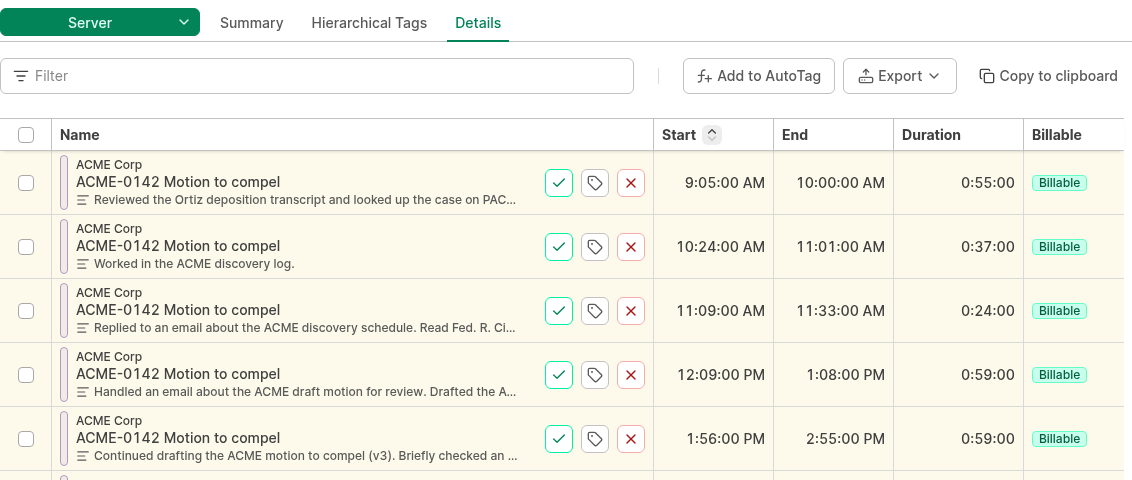
Open Personal → Tag time, go to a day, click AI tag and then Generate AI tags. AI reads the activity of that day (applications, documents and websites) and suggests tags for the time that has no tags yet. Your own tags stay as they are.
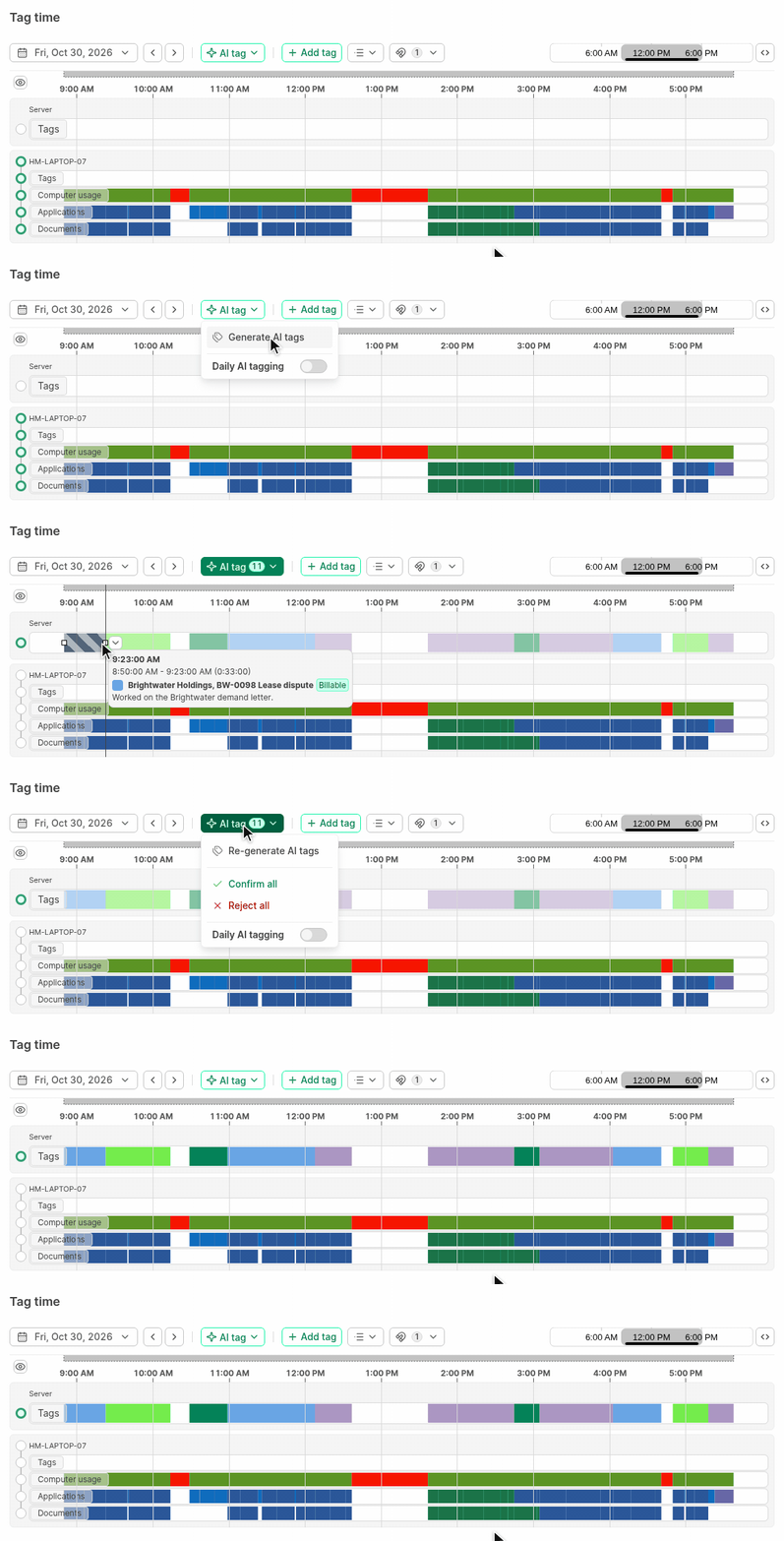
The suggestions are saved as drafts. A draft is a tag that nobody has reviewed yet. You can:
- confirm it
- change it with "Tag as"
- reject it
If the day looks right, click Confirm all. Each draft also comes with a note that describes what you did, so the timesheet already explains itself.
Administrators can choose the level of review:
- No review - AI saves final tags right away.
- Give time to review - AI saves drafts, and ManicTime accepts them automatically after 1 to 7 days if nobody reviews them.
- Manual review - a draft stays a draft until someone confirms or rejects it.
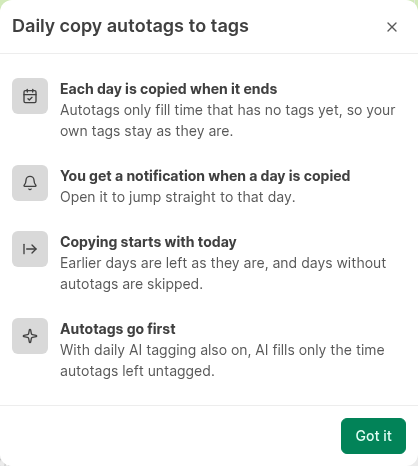
If you don't want to manually run it every day, turn on Daily AI tagging in the same menu. ManicTime then tags each day when it ends and sends you a notification when the day is ready to review. If you also copy autotags to tags every day (see below), autotags go first and AI fills only the time they left untagged.
For all the details, see AI tagging.
AI assistant
Cloud (ManicTime Server) now has a built-in AI assistant. Click AI assistant at the top of the left navigation and ask about your time in your own words.
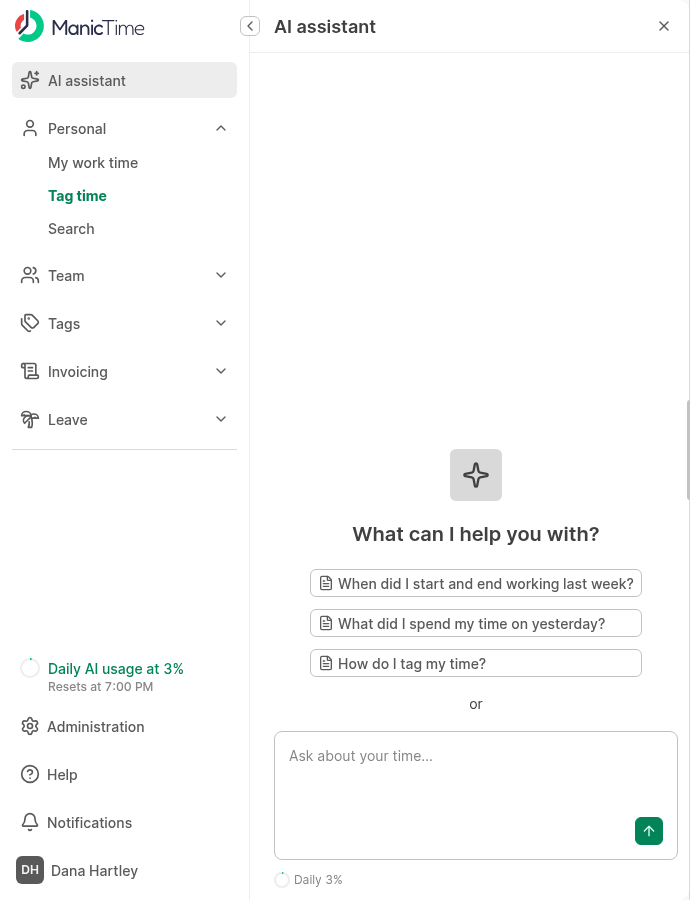
The assistant uses the same tools as the MCP server, so it can do much more than answer questions. A few examples:
How much time did I spend in meetings last week?
What did I work on yesterday afternoon?
Tag this morning's work on the ACME contract as ACME, Contract review.
Run AI tagging for last week, then confirm the drafts.
Add an autotag that tags everything on github.com as Development.
The assistant can only access what the account has access to. A regular user works with their own data, while administrators and users with the right permissions can also ask about their team. Chats are kept on the server, so you can close the panel, come back later from another browser and continue where you left off.
Administrators can also add their own starter messages, prepared questions that users can click to start a chat.
See AI assistant.
AI note summaries
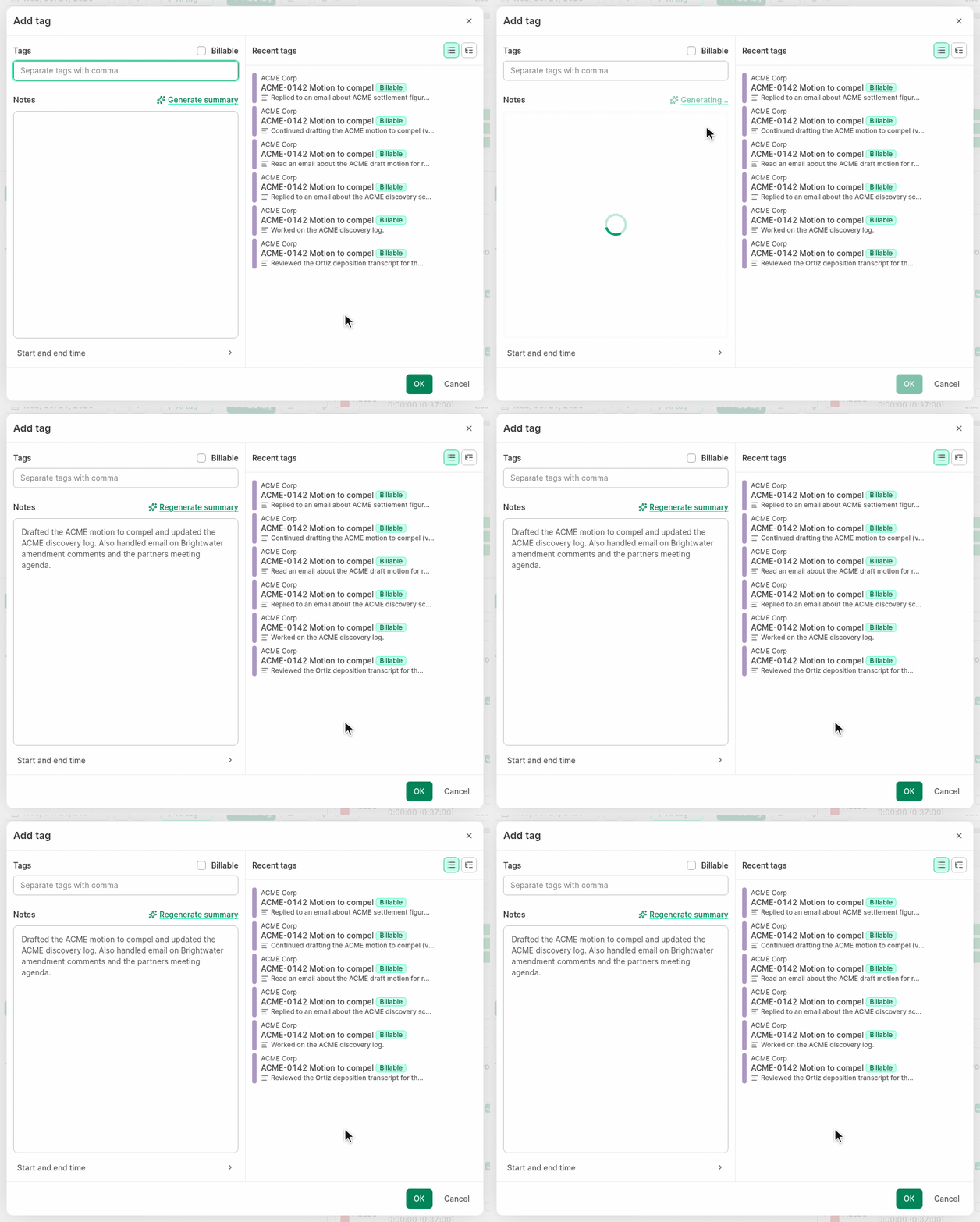
In the Add tag window, click Generate summary above the Notes box, and AI writes the note from what you did in that time. You can also generate a summary for a tag that already exists.
Bring your own AI provider
On ManicTime Cloud, AI is part of the Ultimate AI plan. There is nothing to set up.
On an on-premise ManicTime Server, you decide which AI the server uses. Go to Administration → AI → Connection and enter the URL, model and API key of any provider with an OpenAI-compatible API, for example OpenAI or Azure OpenAI. Click Test to check the connection before you save it.
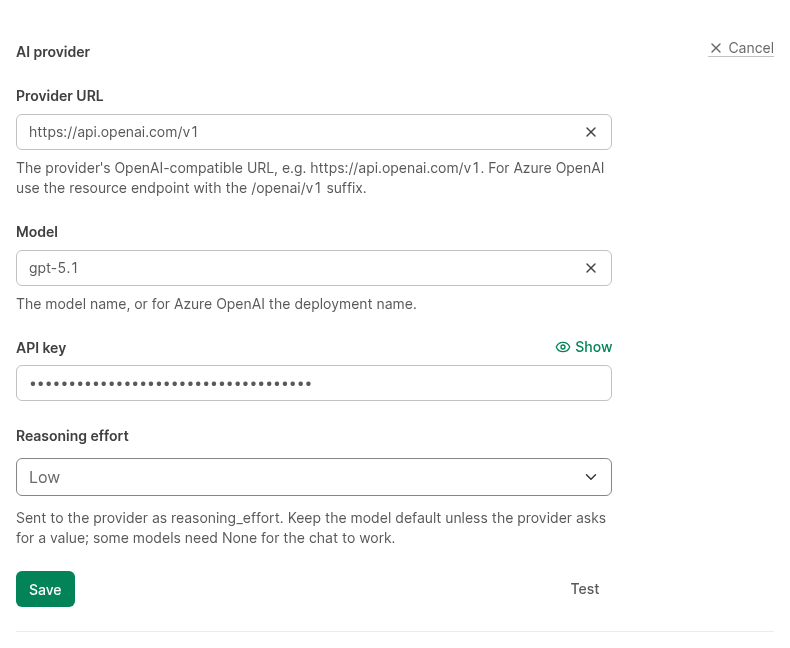
The server sends AI requests to the provider you choose.
See AI administration.
Download: ManicTime Server v2026.3 Beta
Daily copy of autotags to tags
If you already rely on autotags, you no longer need to click Copy autotags to tags at the end of each day. In Tag time, open the Autotags menu and turn on Daily copy autotags to tags. The server copies your autotags to tags when the day ends. Autotags only fill time that has no tags yet, so your own tags stay as they are.
See Autotagging.
New sign-in system for on-premise ManicTime Server
This is the biggest change for administrators of on-premise servers. Until now, a server used either Windows users or ManicTime accounts, chosen once during setup. The new sign-in system replaces that with sign-in methods:
- Windows - users sign in with their domain account.
- Microsoft Entra ID - single sign-on with your organization's Entra ID.
- Email and password - ManicTime accounts, now with invitations and self-service password reset.
You can enable multiple methods of sign-in. For example, the same user can sign in with Windows in the office and with Entra ID from home. Windows and Entra ID can also create users automatically the first time they sign in, and keep names and emails in sync with your directory.
Existing servers keep the old sign-in system until an administrator switches. When you are ready, go to Administration → User management → Sign-in methods. The page lists what to check before you switch.
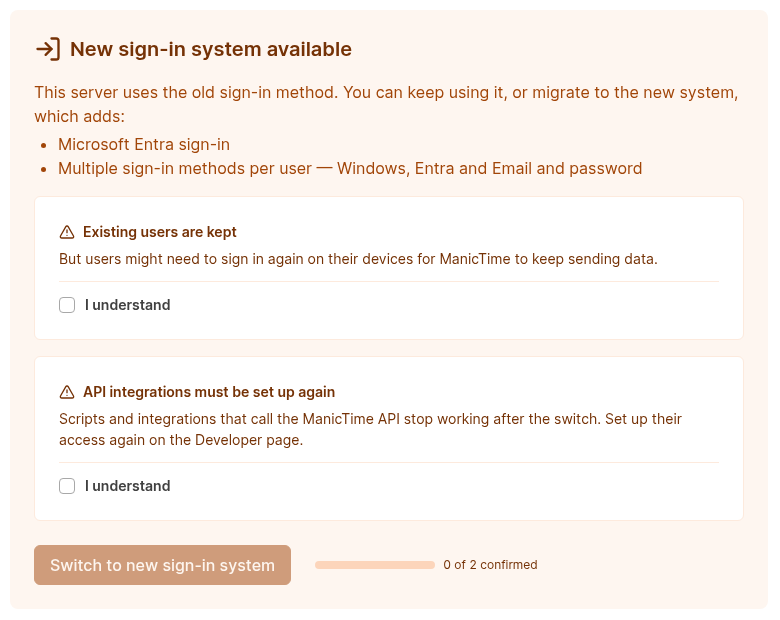
Note: After the switch, only ManicTime v2026.3 clients can sign in. Update all ManicTime clients to v2026.3 first, then switch.
ManicTime for Windows clients that you install with a deployment file can sign in without any user input, as the user that is signed in to the computer.
See Sign-in methods for the full upgrade order.
Connect ChatGPT and Claude directly to your server
With the new sign-in system, AI tools such as ChatGPT and Claude can connect directly to an on-premise ManicTime Server, the same way they connect to ManicTime Cloud. Each user signs in with their own account, and MCP returns only the data that account is allowed to see.
To make this possible, there is a new Developer page under Administration:
- API clients - register an app, such as ChatGPT or Claude, that signs users in with OAuth.
- API tokens - give a script or an integration, such as a Power BI report, access to the API as a chosen user.
The ManicTime MCP Bridge from the previous release is not needed with the new sign in system.
See Connecting AI to ManicTime Server and Developer page.
Other Cloud / Server improvements
- Azure Blob storage for screenshots on on-premise servers.
- 12 new languages: Danish, Finnish, Croatian, Hungarian, Lithuanian, Dutch, Polish, Romanian, Slovak, Swedish, Turkish and Ukrainian.
- Bug fixes and stability improvements
Download: ManicTime Server v2026.3 Beta
ManicTime Windows changes
- Sign-in to ManicTime Server with the new sign-in system: browser sign-in, Windows and Microsoft Entra ID. Clients installed with a deployment file sign in without user input. See Connecting with ManicTime Server.
- The configuration wizard asks for the server address and the sign-in on separate screens.
- Chat titles of ChatGPT, Claude and Codex on the Documents timeline, so you can see which conversation you worked on.
- The Show tag notes in recent tags setting (Settings, Tagging) can now also hide notes in Add tag window.
- Updated translations.
- Bug fixes and stability improvements
Download: ManicTime for Windows v2026.3 Beta
ManicTime Mac changes
- Sign-in to ManicTime Server with the new sign-in system.
- Support for macOS 27. ManicTime now needs macOS 14 or newer.
- Chat titles of Claude, ChatGPT and Codex, and Slack and Figma documents, on the Documents timeline.
- More reliable tracking: the tracker no longer freezes when an app stops responding, records app switches and title changes even when you don't type or move the mouse, and detects fast user switching.
- The tracker takes no screenshots without the Screen Recording permission, and uses less memory.
- Bug fixes and stability improvements
Download: ManicTime for Mac v2026.3 Beta
ManicTime Linux changes
- Sign-in to ManicTime Server with the new sign-in system.
- Preferences now have Check for updates, the Away time and the Away window, as on the Mac.
- Chat titles of Claude and ChatGPT on the Documents timeline.
- URL tracking for Chromium, Brave and Edge on all distributions, and the open file of applications from the recent files list.
- Screen lock detection on Hyprland, GNOME, COSMIC and Xfce. Sway and Hyprland tracking reads compositor events instead of polling.
- Package changes: the .deb package is for amd64 only, the packages no longer need X11 developer packages, and there is no separate Arch Linux package anymore. On Arch Linux, Manjaro and Fedora, use the tar.gz. See Installation.
- Bug fixes and stability improvements
Download: ManicTime for Linux v2026.3 Beta
As always, this beta is a chance to test changes before the final release. If you find a bug, have a feature suggestion or any other feedback, contact us. Every report helps improve the final version.